





















Project management software is often designed for teams, but many are customizable enough to support solo users, freelancers, and project professionals. ClickUp is a top choice for its generous free plan and breaking projects into tasks. Asana suits individuals who want to track progress toward goals, while Zoho Projects caters to solo developers. In this article, I compare the best personal project management software based on how each platform supports different types of individual work.
| Best for | Starting monthly fee(billed annually) | |
| ClickUp | Best for detailed project breakdowns | $7/user |
| Asana | Best for goal management | $10.99/user |
| Zoho Projects | Best for solo developers | $4/user |
| Trello | Best visual task overviews | $5/user |
| monday | Best visually intuitive interface | $9/user |
| Notion | Best for tracking work and personal tasks | $10/user |
| Wrike | Best for client work | $10/user |
| Todoist | Best for basic task lists | $5/user |
How I evaluated the best project management software for individuals
I scored each product out of five using a weighted rubric that reflects the pricing and features most relevant to individual project professionals.
Pricing (20%): For each provider, I checked the availability of a free plan and what one person would pay for an entry-level subscription. I also reviewed which project management features are included at that cost and any add-on fees.
General features (25%): I scored the tools used to manage project work, including tasks, subtasks, priorities, recurring work, and milestones. I also reviewed project views, reminders, calendars, mobile app support, and offline access.
Advanced and niche features (20%): I tested what each product can do with automation and AI, such as creating tasks, updating work, or answering questions about project data. I also reviewed time tracking, personal productivity insights, integrations, and import/export options.
Ease of use (10%): I checked how a new user can quickly create a project and start adding tasks. I also reviewed onboarding, templates, task entry, saved views, and the level of setup required before the workspace is ready to use.
Support (10%): I compared the support channels available to users, including tickets, live chat, and phone support. I also reviewed official help resources, user communities, and security features such as SSO, permissions, and audit logs.
Expert score (15%): I based my expert score on four areas: feature coverage, value for money, third-party review ratings, and product documentation. Products earned more points when they included individual-use features at a reasonable price and their documentation identified feature availability by plan.
Why you should trust Project-management.com
As a tech analyst for project management software, I have personally tested nearly 20 platforms over the past five years, and several have become part of my workflow. I have written dozens of buyer’s guides covering a wide range of use cases and company sizes, which gave me a broader understanding of what project teams need from these tools.

Marianne Sison
Senior Staff Writer for Project Management
| Providers | Key features | My rating |
| ClickUp | Personal task views, custom AI assistant, native time tracking, Gantt charts, custom fields, forms | 4.90 out of 5 |
| Asana | List, board, and calendar views, unlimited tasks and projects, forms, Timeline and Gantt views | 4.86 out of 5 |
| Zoho Projects | Dependencies, Gantt charts, time tracking, issue tracking, GitHub integration, custom modules | 4.53 out of 5 |
| Trello | Kanban boards, Inbox, Planner, advanced checklists, custom fields, automation | 4.52 out of 5 |
| monday | Customizable boards, My Work, custom AI workflows, status and priority columns, Workdocs | 4.36 out of 5 |
| Notion | Databases, pages, wikis, calendar integration, subtasks and dependencies, custom properties | 4.34 out of 5 |
| Wrike | Task management, shareable dashboards, interactive Gantt charts, request forms | 4.31 out of 5 |
| Todoist | Recurring tasks, reminders, list and board layouts, filters, habit forming | 4.08 out of 5 |
- 1. ClickUp – Best for detailed project breakdowns
- 2. Asana – Best for goal management
- 3. Zoho Projects – Best for solo developers
- 4. Trello – Best for visual task overviews
- 5. monday.com – Best for visually intuitive interface
- 6. Notion – Best for tracking work and personal tasks
- 7. Wrike – Best for client work
- 8. Todoist – Best for basic task lists
- How to choose the right personal project management software
- FAQs
1. ClickUp – Best for detailed project breakdowns
- My rating: 4.90 out of 5
- Free plan available
- Starts at $7/user/month

Why I chose ClickUp
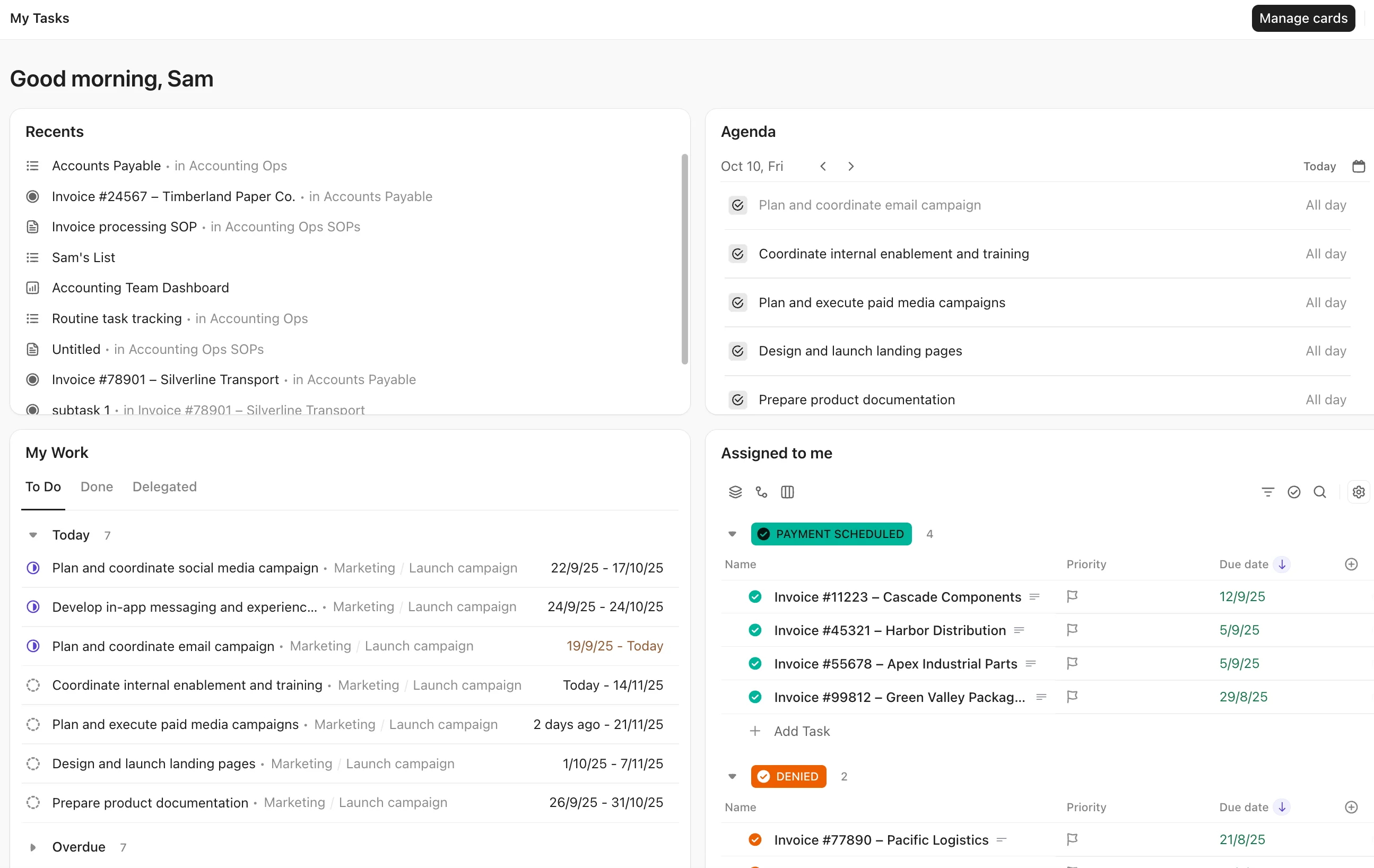
ClickUp is best for managing projects that need to be divided into several levels of tasks. You can separate different areas of work into Spaces, group related projects into Folders, and use Lists for individual projects or goals. Within each List, you can break tasks into subtasks and nested subtasks, allowing you to map everything from the overall project down to individual action items.
This software is also one of the leading free project management options for individuals because its Free Forever plan includes access to several advanced features through usage credits. You get limited uses of Gantt charts, custom fields, Goals, and other capabilities that many platforms reserve entirely for paid plans. This helps solo users on a budget to use more advanced project tools before deciding whether an upgrade is necessary.
However, for projects that rarely require this level of breakdown, users may find ClickUp more complex than necessary for individual tasks. Todoist uses a checklist-based approach that may be more suitable for individuals who primarily need to organize to-dos and track deadlines rather than configure multiple levels for each project.
| Pros | Cons |
| • All-in-one workspace for tasks, docs, and planner | • Large workspaces can load slowly |
| • Each task entry includes built-in timers | • Initial setup can feel complicated |
| • AI search finds information across workspace content | • Mobile app has fewer features |
Key features
- Personal List: Organize private tasks separately from the main workspace and customize statuses for your personal workflow.
- Calendar view: Schedule tasks across daily, weekly, or monthly calendars and reschedule work through drag-and-drop controls.
- Recurring tasks: Schedule repeat work using daily, weekly, monthly, or custom recurrence rules.
- Time Tracking: Track time against tasks to measure how long client work or personal projects actually take.
Pricing
- Free plan: It includes unlimited tasks, collaborative Docs, Kanban boards, calendar view, sprint management, and limited AI usage.
- Unlimited: $7/user/month; includes unlimited Gantt charts, integrations, storage, custom fields, native time tracking, resource management, and portfolio tools.
- Business: $12/user/month; includes advanced dashboards, portfolio workload management, sprint reporting, private whiteboards, and 5,000 automations per month.
- Enterprise: Custom pricing; includes enterprise permissions, SAML SSO and SCIM, audit logs, data residency, and up to 250,000 automations/month.
AI pricing: Brain AI costs $9/user/mo billed annually, while Everything AI costs $28/user/mo; additional AI Super Credits are available for agent and automation usage.
Learn more: The Pros & Cons of Using ClickUp for Project Management in 2026
2. Asana – Best for goal management
- My rating: 4.86 out of 5
- Free plan available
- Starts at $10.99/user/month

Why I chose Asana
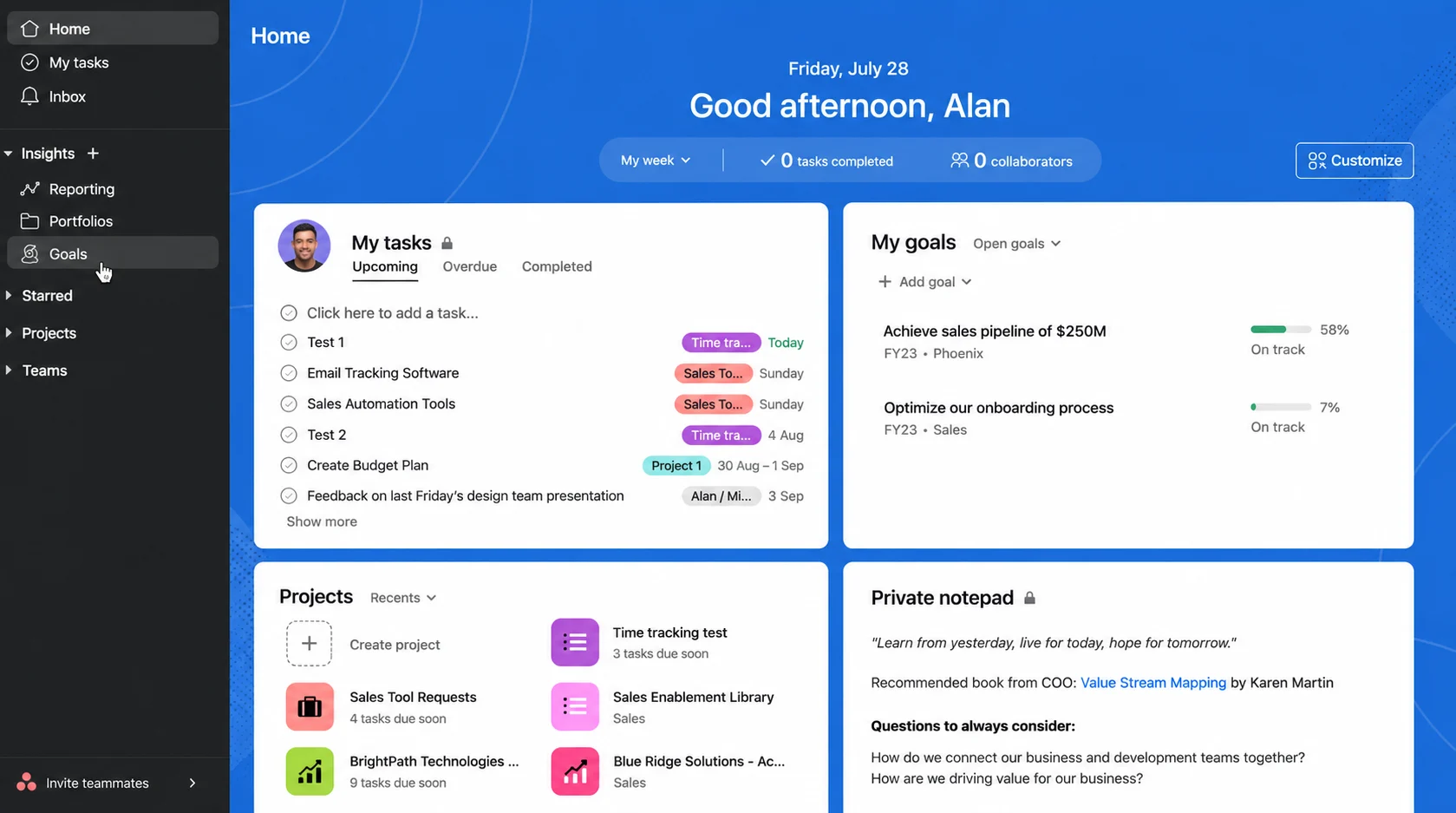
Asana lets individuals track long-term goals alongside the projects and tasks that support their progress. As you complete the work connected to a goal, Asana automatically updates your progress, so you do not have to maintain a separate record of completed work. For longer-term goals, this helps you see whether the work you complete each day is bringing you closer to your target.
If you have a big goal made up of several smaller goals, Asana lets you track each one separately while showing how they contribute to the main goal. You can give more important goals a bigger effect on the overall progress, so finishing a small goal does not make it seem like you are further ahead than you really are. You can also track progress as a percentage, number, or dollar amount, depending on what you want to achieve.
Access to Goals requires Asana Advanced at $24.99 per user monthly. Alternatively, solo users can get dedicated goal tracking for less with ClickUp, which includes limited Goals on its free plan and unlimited access to Goals on paid plans.
| Pros | Cons |
| • My Tasks keeps priorities in one place | • Nested subtasks can disappear from timelines |
| • Mobile app supports quick task updates | • Advanced workflows take time to configure |
| • Tasks can belong to multiple projects | • One task only allows one assignee |
Key features
- My Tasks: Centralize assigned tasks in a personal view and organize priorities by custom sections, dates, or saved views.
- Timeline: Plan task schedules on a Gantt-style timeline to review deadlines and adjust the sequence of project work.
- Dependencies: Connect tasks that must occur in sequence to identify which activities can begin and which must wait.
- Time tracking: Record time spent on tasks to compare planned effort with the hours required to complete work.
Pricing
- Free plan: It includes unlimited tasks and projects for up to two users, with list, board, and calendar views.
- Starter: $10.99/user/month; includes Timeline and Gantt views, reporting dashboards, unlimited automations, custom fields, and 50,000 monthly AI credits.
- Advanced: $24.99/user/month; includes portfolios, goals, workload management, native time tracking, approvals, and 75,000 monthly AI credits.
- Enterprise: Custom pricing; includes universal workload, capacity planning, SAML, SCIM, service accounts, and 200,000 monthly AI credits.
- Enterprise+: Custom pricing; adds Asana’s higher-level security, compliance, and governance capabilities.
AI pricing: AI Studio Basic is included with paid plans; AI Studio Plus costs $135/account/mo billed annually with 100,000 monthly credits, while AI Studio Pro uses custom pricing.
3. Zoho Projects – Best for solo developers
- My rating: 4.53 out of 5
- Free plan available
- Starts at $5/user/month

Why I chose Zoho Projects
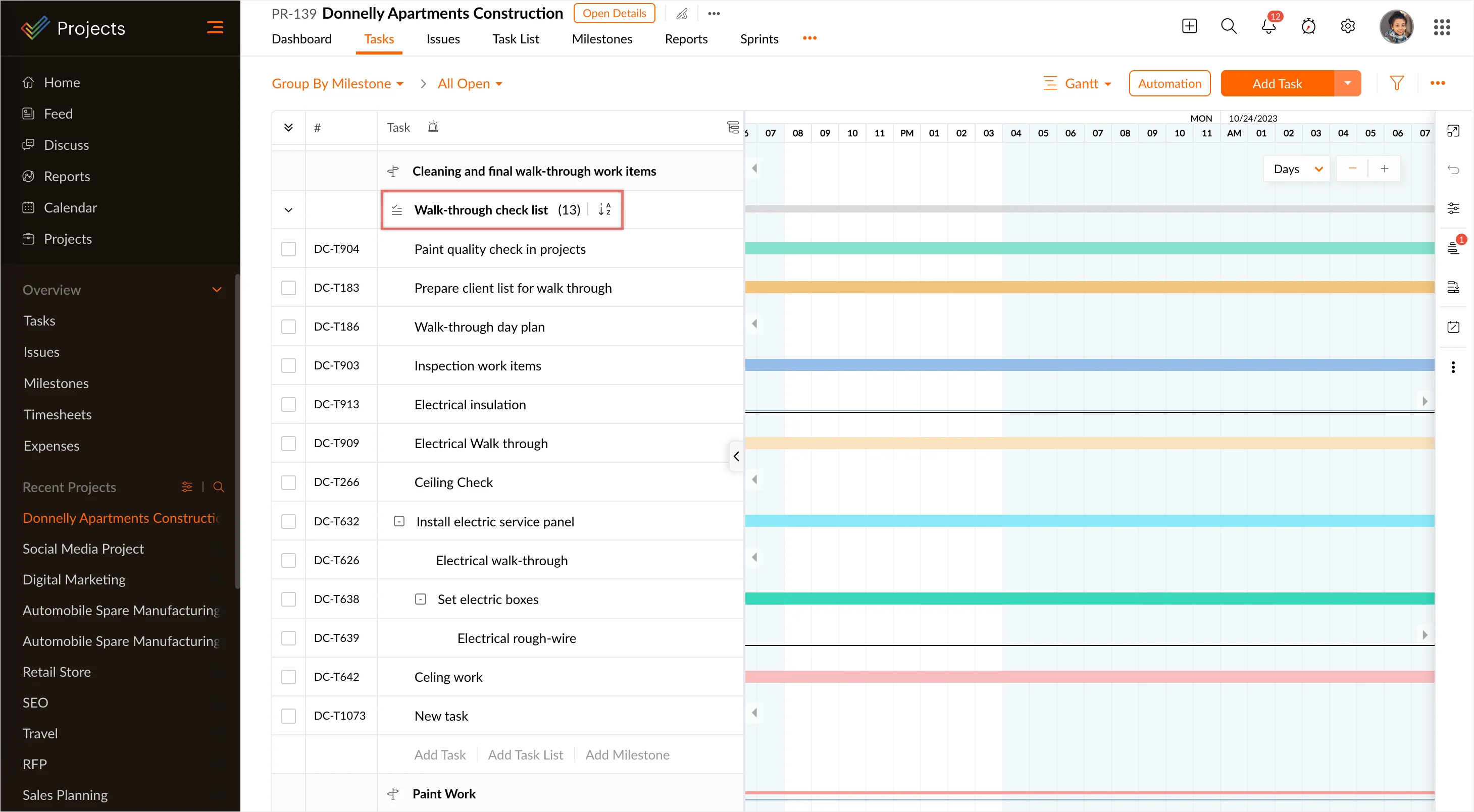
Zoho Projects is best for solo developers who want to manage software development projects from planning through release. You can track code versions as milestones, manage bugs alongside tasks, and map dependencies between development activities. Gantt charts also show critical paths and baselines, helping you assess how delays could affect a release date.
Custom modules serve as records for different parts of software development, such as releases, technical debt, QA testing, API dependencies, or security issues. Each module can have its own custom fields, while relationships between modules let you connect related records across the project.
The tradeoff is a steeper learning curve, as users may need more time to set up how tasks, milestones, bugs, and custom modules should be used. Consider Trello if you need a straightforward Kanban board for tracking development tasks and do not need dedicated bug tracking or custom modules.
| Pros | Cons |
| • Zia suggests weekly timesheet entries | • Interface can require more navigation |
| • Affordable per-user fees | • Large projects can load slowly |
| • Critical path identifies schedule-sensitive tasks | • Mobile app has fewer capabilities |
Key features
- Gantt chart: Map project schedules visually and reschedule tasks when dates change while keeping dependencies visible.
- Recurrence: Schedule routine tasks to repeat automatically on daily or weekly cycles.
- Timers: Start and stop timers while working to record task hours automatically as timesheet entries.
- Project baseline: Compare the current project schedule against an earlier baseline to identify deviations from the original plan.
Pricing
- Free plan: It includes up to five users, three projects, subtasks, Gantt charts, 5 GB storage, and 50 workflow executions per month.
- Premium: $4/user/month; includes unlimited projects, four task dependency types, project budgeting, time tracking, custom views, and 5,000 workflow executions/month.
- Enterprise: $9/user/month; includes portfolio dashboards, cross-project dependencies, critical path and baselines, SSO, custom roles, and 50,000 workflow executions/month.
- Ultimate: $14/user/month; includes higher storage and customization limits, 100 read-only users, advanced resource management, and 500,000 workflow executions/month.
- Free trial for paid plans: 15 days.
AI pricing: Zia capabilities are included on eligible plans, while the free plan includes access to Zoho MCP Server.
4. Trello – Best for visual task overviews
- My rating: 4.52 out of 5
- Free plan available
- Starts at $5/user/month

Why I chose Trello
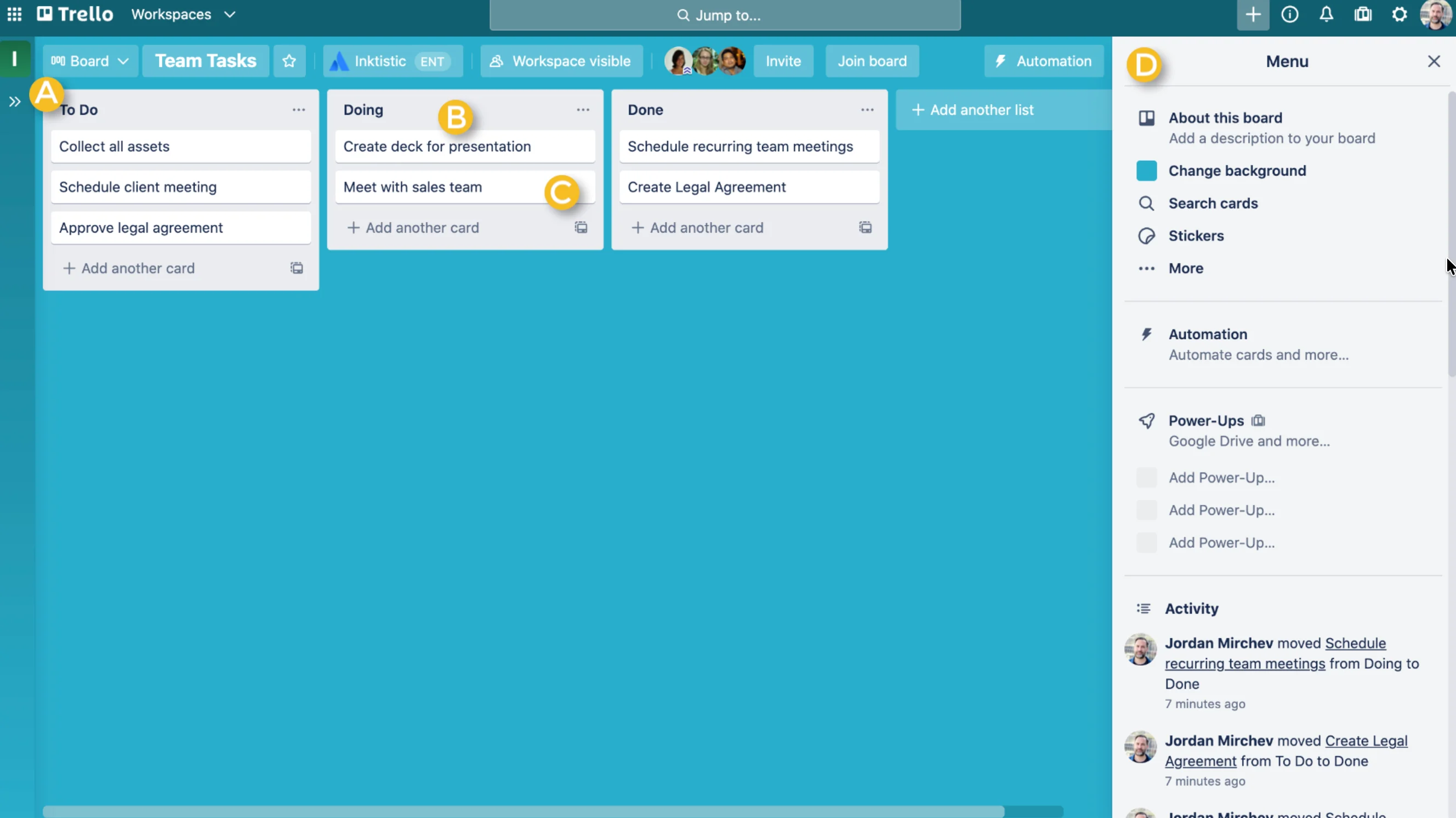
Trello works best for freelancers or professionals who manage multiple responsibilities and want a visual overview of their progress. The platform centers on Kanban boards, where lists represent stages such as To Do, In Progress, and Done, while individual tasks appear as cards. As each task progresses, you can move its card between lists to reflect its current status.
Each card can hold granular task details, including due dates, attachments, and checklists. Checklists also show a completion percentage, so you can see how much of a larger task is finished before moving the card to Done.
Given its focus on Kanban boards, Trello may not be enough for individuals who need more detailed project planning across dependencies, timelines, and milestones. Choose monday.com instead if your work requires more ways to plan and track complex projects beyond a board view.
| Pros | Cons |
| • Inbox collects tasks from different sources | • No Gantt chart |
| • Power-Ups add specialized project features | • Reporting often needs other tools |
| • Kanban cards make tasks easy to reorganize | • Large boards are harder to manage |
Key features
- Boards and cards: Move task cards between board lists to represent each stage of a project workflow.
- Checklists: Break a card into smaller steps to track multi-step tasks within a single work item.
- Automation: Create trigger-based rules or buttons that handle repetitive card updates and due date actions automatically.
- Planner: Sync calendar commitments and reserve time blocks for Trello tasks within a personal schedule.
Pricing
- Free plan: It includes unlimited cards, up to 10 boards per Workspace, 250 monthly automation command runs, and up to 10 collaborators.
- Standard: $5/user/month; includes unlimited boards, advanced checklists, custom fields, card mirroring, Planner, and 1,000 monthly automation command runs.
- Premium: $10/user/month; includes AI, Calendar and Timeline views, dashboards, unlimited automation command runs, and admin controls.
- Enterprise: $17.50/user/month; includes unlimited Workspaces, organization-wide permissions, SSO, user provisioning, and centralized Power-Up administration.
AI pricing: AI is included with Premium, while Standard includes AI-assisted capture from email, Slack, and Teams.
5. monday.com – Best for visually intuitive interface
- My rating: 4.36 out of 5
- Free plan available
- Starts at $9/user/month

Why I chose monday
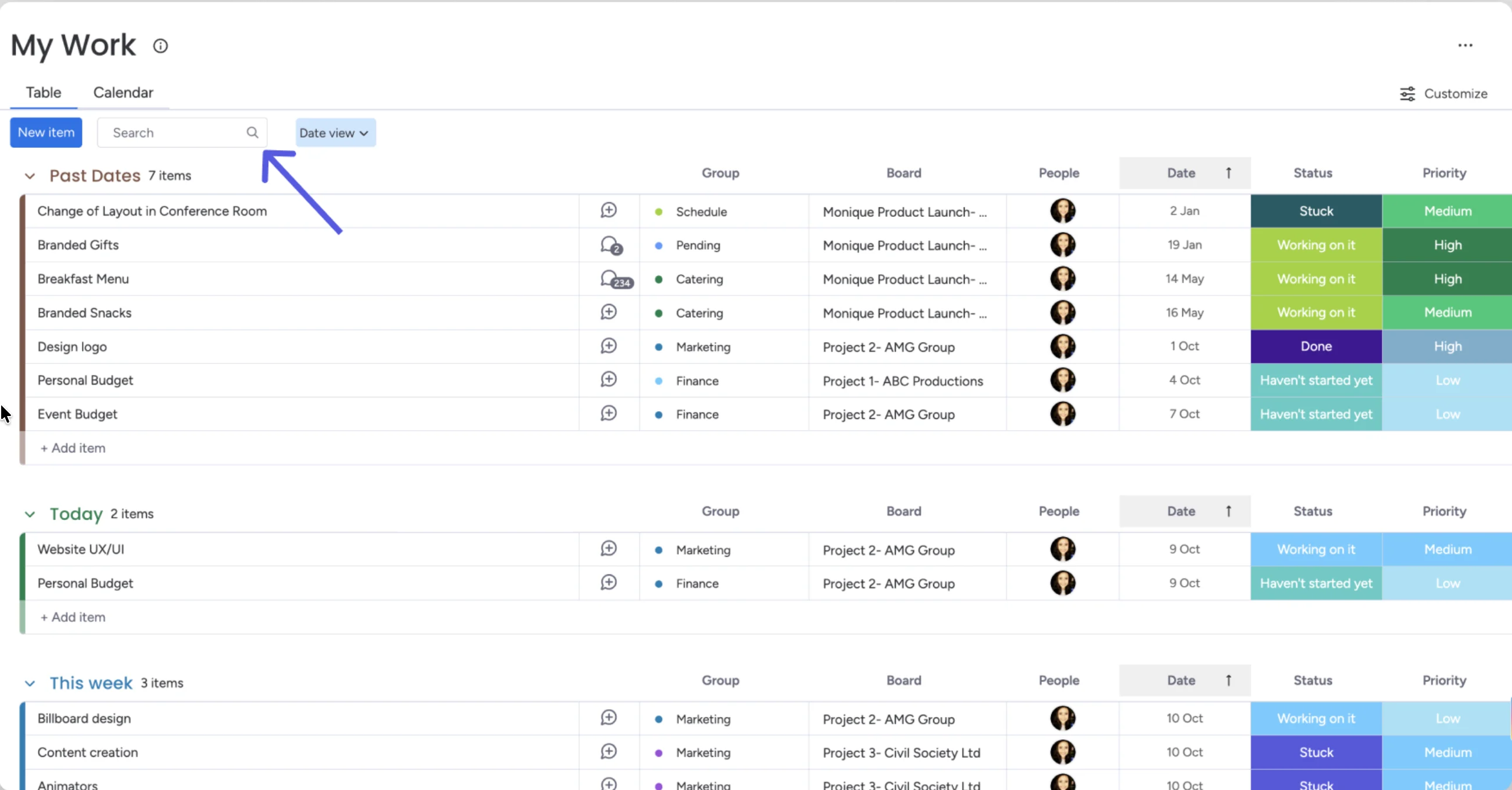
monday.com’s AI work platform offers grid-style boards that let users identify project details like task status and deadlines from the main workspace. Color-coded status labels distinguish work in progress from completed or blocked tasks, while task groups let you separate a board by category or project phase, or client.
You can also switch the same project data between Calendar, Kanban, Timeline, and Gantt views. For those managing several projects, My Work combines all assigned tasks from different boards into one place, where you can organize them by due date or priority. This gives you both a project-level overview and a focused view of your immediate priorities.
monday.com’s paid plans have a three-seat minimum, so individual users may have to pay for two additional seats they do not need. ClickUp is a better alternative if you want access to more paid project management features without purchasing additional seats for people who will not use the account.
| Pros | Cons |
| • Columns can model highly specific workflows | • Minimum seat purchases can lead to unused seats |
| • Formula columns calculate project metrics | • Automations use monthly action allowances |
| • Board permissions protect private data | • Some AI suggestions require manual correction |
Key features
- My Work: Centralize assigned tasks across project boards to review upcoming personal tasks from one location.
- Gantt: Plot activities against project dates to review your planned schedule and adjust task timing visually.
- Automations: Create trigger-based rules that update items or move tasks automatically when predefined conditions occur.
- Time Tracking Column: Record time against individual tasks with a timer or manual entries.
Pricing
- Free plan: It includes up to two seats, three boards, three workdocs, and over 200 templates.
- Free trial for paid plans: 14 days for the Pro plan.
- Basic: $9/seat/month; includes unlimited items and viewers, basic work management, and 1,000 AI credits/month.
- Standard: $12/seat/month; includes Timeline and Gantt views, guest access, integrations, automations, and 2,000 AI credits/month.
- Pro: $19/seat/month; includes time tracking, private boards and docs, advanced views, 25,000 monthly automation actions, and 3,000 AI credits/month.
- Enterprise: Custom pricing; includes portfolio and resource management, enterprise security, multi-level permissions, and up to 250,000 automation and integration actions/month.
AI pricing: AI uses monthly credits included on paid plans, with extra credits available for purchase; Enterprise receives a custom credit allocation.
Learn more: monday.com Review 2026: Features, Pricing & Verdict
6. Notion – Best for tracking work and personal tasks
- My rating: 4.34 out of 5
- Free plan available
- Starts at $10/user/month

Why I chose Notion
Notion offers databases that let individuals manage work and personal tasks in the same workspace while keeping each area organized separately. You can create databases for client projects, household tasks, or personal goals, then filter each one by status, priority, or due date and display the same information as a list, board, calendar, or table.
Each database item is also a page, so a task can hold notes, files, research, or other context instead of serving only as a checklist. Pages can be nested to organize larger areas of your life, while wikis provide a dedicated place for reference material you expect to revisit. You can also connect databases, such as linking individual tasks to larger projects, which keeps related information accessible from either database.
Notion’s flexibility also means you may spend more time customizing your databases to match your personal workflow. Choose Asana if you prefer a more traditional project management approach where tasks and projects require less customization upfront.
| Pros | Cons |
| • Tasks can contain project documentation | • No native time tracking |
| • Linked databases reuse the same project data | • Dependencies require database configuration |
| • Calendar combines tasks with personal events | • Large databases can load slowly |
Key features
- Task databases: Create dedicated task databases with status and due-date properties to manage work within your workspace.
- Sub-items and dependencies: Divide projects into smaller tasks and link work that must be completed in a specific order.
- Calendar view: Display database tasks by date and reschedule project work from a weekly or monthly calendar.
- Reminders: Schedule deadline alerts for specific tasks or pages.
Pricing
- Free plan: It includes unlimited pages for individuals, databases with subtasks and dependencies, basic forms, Notion Calendar, and trial AI access.
- Plus: $10/user/month; includes unlimited collaborative blocks, file uploads, charts, custom forms, and trial AI access.
- Business: $20/user/month; includes Notion AI, advanced collaboration, private teamspaces, and admin tools.
- Enterprise: Custom pricing; includes Notion AI plus enterprise security, admin controls, and scalability features.
AI pricing: Free and Plus receive limited trial AI usage, while Business and Enterprise include full Notion AI.
7. Wrike – Best for client work
- My rating: 4.31 out of 5
- Free plan available
- Starts at $10/user/month

Why I chose Wrike
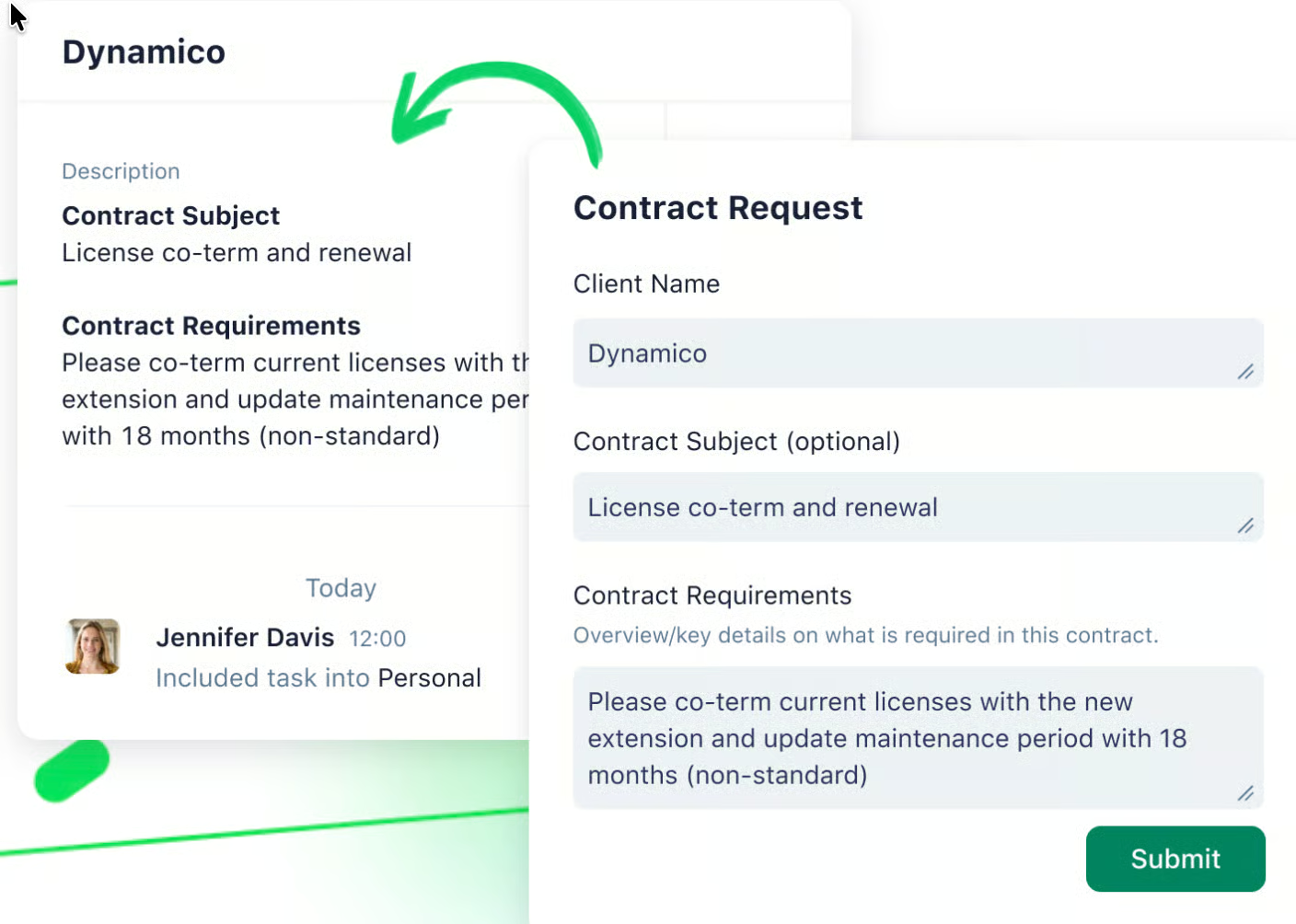
Wrike supports client work from the initial request through final approval. When a client sends a request through an intake form, Wrike automatically turns the submission into a task, so you can start planning from the information they provided. If a request requires additional details, conditional questions can adapt the form based on the client’s previous responses and collect information relevant to that specific project.
Clients can review deliverables without creating a Wrike account or accessing the project itself. Guest reviewers receive an email invitation to comment on files and submit their response, while you can decide whether they can view previous file versions or internal comments.
For hourly client work, Wrike lets you record time with a task timer or add manual entries, while timesheets show how much time you spent on weekly tasks. Billable time tracking also lets you classify recorded hours as billable or non-billable, so you can separate time charged to clients from other project work.
Solo professionals may find Wrike expensive because request forms, guest reviews, and billable time are locked at higher-priced tiers. Choose Zoho Project if you need client project management and time tracking at a lower entry cost.
| Pros | Cons |
| • Intake forms create work requests automatically | • Requires significant setup |
| • Proofing attaches feedback to files | • Steep price jump between plans |
| • Baselines compare planned and actual schedules | • Calendar navigation frustrates some users |
Key features
- Personal space: Keep private project work in a dedicated workspace that contains personal task-management folders by default.
- My To-Do: Collect personal tasks in one view and sort work by priority, dates, or status.
- Gantt Chart: Review scheduled tasks on a timeline and adjust dates or task durations from the chart.
- Calendar view: Display project work by date to identify scheduling overlaps and reschedule individual work items.
Pricing
- Free plan: It includes task and project management, board view, apps, and up to 200 active tasks.
- Free trial for paid plans: 14 days with no credit card required.
- Team: $10/user/month; includes interactive Gantt charts, shareable dashboards, and AI Essentials for teams of two to 15 users.
- Business: $25/user/month; includes customizable workflows, additional integrations, and AI Elite capabilities for teams of five to 200 users.
- Pinnacle: Custom pricing; includes advanced resource and capacity planning, budgeting, advanced reporting, and a higher AI Elite allowance.
- Apex: Custom pricing; includes expanded AI agent usage, unlimited whiteboards, advanced integrations, and bidirectional sync.
AI pricing: AI Essentials is included with Team, while Business and higher tiers include higher AI Elite usage.
8. Todoist – Best for basic task lists
- My rating: 4.08 out of 5
- Free plan available
- Starts at $5/user/month
Why I chose Todoist
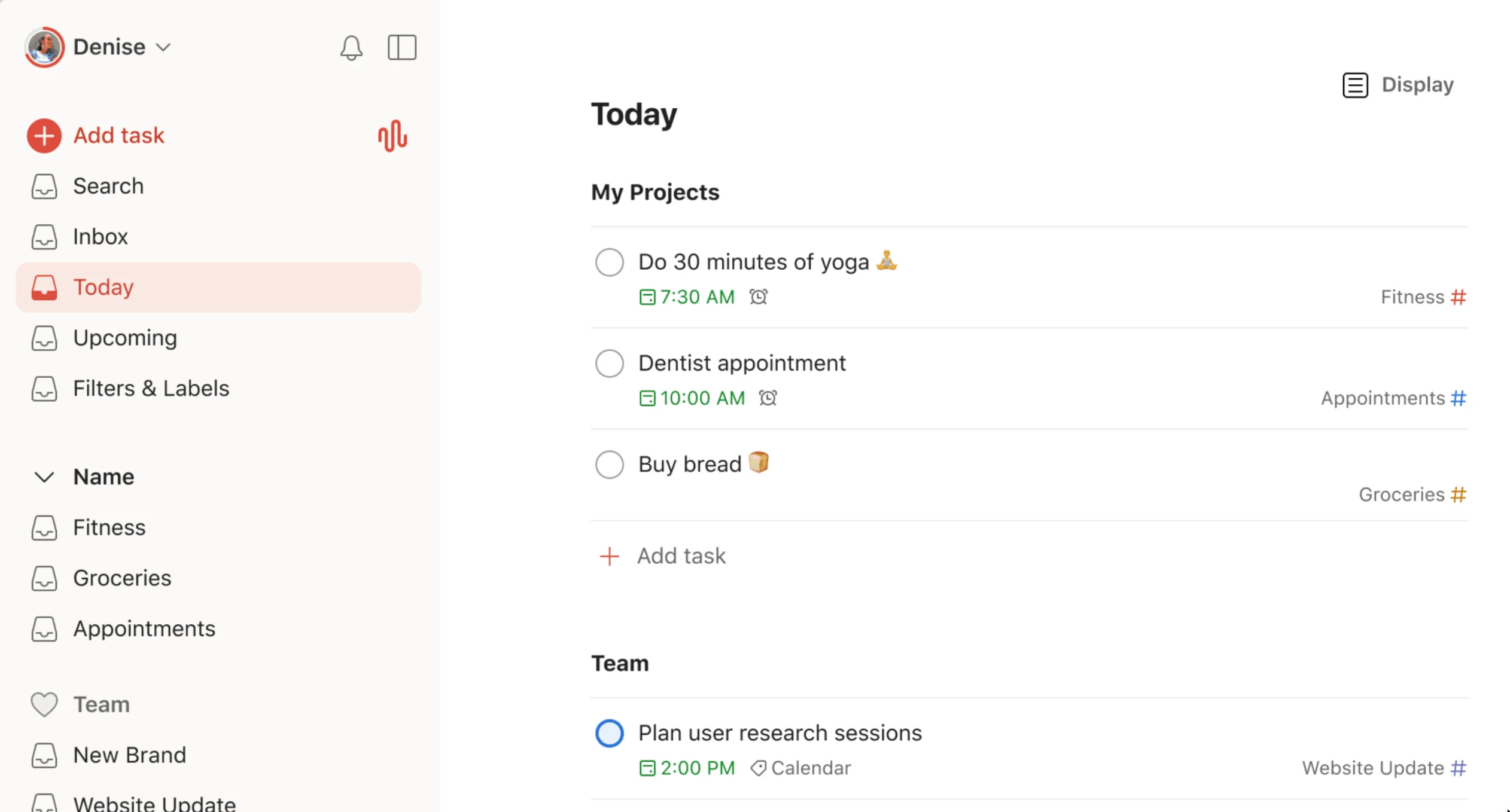
Todoist makes it easy to capture everyday tasks through voice and text commands, reducing the setup time to maintain a personal task system. Quick Add recognizes dates from plain-language entries, while priorities and labels help you organize tasks by urgency or category. Once tasks are scheduled, Today keeps current work in one list, and Upcoming shows what is due later.
For responsibilities that follow a regular schedule, recurring due dates automatically create the next occurrence after you complete a task. You can use them for weekly reports, monthly admin, or personal routines, while daily and weekly goals track how consistently you complete your planned tasks. When a to-do requires several steps, projects and subtasks provide additional organization while keeping the workflow centered on a task list.
Todoist may feel restrictive if your responsibilities involve client requests, approvals, or complex workflows. Wrike is a better option for these scenarios because it also functions as an enterprise project tool.
| Pros | Cons |
| • Ramble turns speech commands into tasks | • No task dependencies |
| • Quick Add recognizes dates from sentences | • Reporting covers only basic project activity |
| • Calendar shows tasks along with external events | • Complex projects rely on labels and filters |
Key features
- Recurring dates: Schedule repeating tasks using recurring date rules for routine work that follows a predictable cadence.
- Calendar layout: Arrange dated tasks on weekly or monthly calendars and drag tasks to new dates when plans change.
- Task duration: Estimate how much time scheduled tasks require and reserve a defined amount of time for each activity.
- Filters: Create filtered views that surface tasks matching selected criteria for more focused personal planning.
Pricing
- Free plan: It includes five personal projects, reminders, list and board views, three filter views, and one week of activity history.
- Pro: $5/user/month; includes up to 300 personal projects, calendar layout, task duration, custom reminders, deadlines, and full activity history.
- Business: $8/user/month; includes a shared team workspace, up to 500 team projects, team roles and permissions, shared templates, and centralized billing.
AI pricing: Todoist includes AI-assisted features such as Task Assist and Ramble within applicable plans.
How to choose the right personal project management software
Choosing personal project management software starts with understanding how you plan, track, and complete your work. Consider the complexity of your projects, your preferred way of viewing tasks, and whether you need capabilities beyond task management. Below are the main factors to consider when comparing your options.
- Match the software to your type of work. If you mainly track appointments, deadlines, and to-dos, a simple task manager may be enough. Projects with several stages may call for dependencies or milestones, while freelancers may benefit from time tracking and client review tools.
- Choose how you want to view your workload. Lists work well for basic task tracking, while Kanban boards show how work progresses from one stage to another. If your work revolves around dates, calendar or timeline views can help you plan task schedules.
- Decide how much customization you will actually use. Some platforms let you create custom fields, workflows, and project templates, but those options can add setup time. Consider whether you want to build your own system or start with a simpler workflow that requires fewer configurations.
- Compare the cost of the features you need. Check which pricing tier includes your required capabilities rather than comparing entry-level prices alone. Seat minimums are also important for solo users because you could end up paying for accounts you will never use.
- Plan for more demanding projects. Your requirements may change if you begin managing clients or take on work with more dependencies. Check whether the software can accommodate those needs so you have room to manage more projects later.
The right choice depends on how much project management your work actually requires. A straightforward task manager can support personal to-dos and recurring responsibilities, while more complex work may justify software with scheduling, client management, or project planning capabilities.
FAQs
Which personal project management software is best for freelancers?
Freelancers should consider tools that support client projects, time tracking, forms, or external reviews. Wrike is useful for client-facing workflows, while ClickUp is a lower-cost option for freelancers who need detailed project tracking and time tracking.
Can I use project management software for both work and personal tasks?
Yes. Tools such as Notion, ClickUp, Todoist, and monday.com let you separate work and personal projects while still viewing tasks in a central dashboard or personal workspace.
What is the best personal project management software?
The best choice depends on what you manage. ClickUp works well for detailed projects with multiple levels of tasks, Trello provides visual Kanban boards, Notion combines task tracking with documentation, while Todoist suits straightforward task lists.